
Last updated: March 27, 2026
Set Spam Filters
Spam filters in Dash0 help you control costs by preventing the storage of excessive or unnecessary telemetry data.
These filters allow you to specify rules that drop spans, logs, and metric data points during ingestion, so you don't get charged for telemetry that provides little value to your observability goals.
Rather than collecting everything indiscriminately, spam filters let you focus on the most relevant data for troubleshooting and monitoring your systems.
How Spam Filters Work
Spam filters operate at the ingestion pipeline level.
When telemetry data matches your defined filter criteria, Dash0 automatically drops the matching data before it's stored, and you aren't charged for it.
This process happens in real-time as data flows into Dash0.
The key benefits include:
- Reduced storage costs by eliminating low-value telemetry
- More focused and relevant data for analysis
- No charge for filtered data
- Dataset-specific configuration options
Configuring Spam Filters
You can configure spam filters directly within the tracing, logging, and metric explorers.
The Spam button is located right within the Log Explorer, Trace Explorer, and Metric Explorer, on the right next to the Settings button:

-
Navigate to the Log Explorer, Trace Explorer, or Metric Explorer.
-
Define filter criteria for the data you want to exclude. For example, in this filter, a subset of services is identified for exclusion:

-
Click the Spam button to create a spam filter.
-
Confirm the filter creation in the dialog, by reading the text and clicking Flag as spam. For example, below the filter created in step 2 above is now defined as a spam filter:
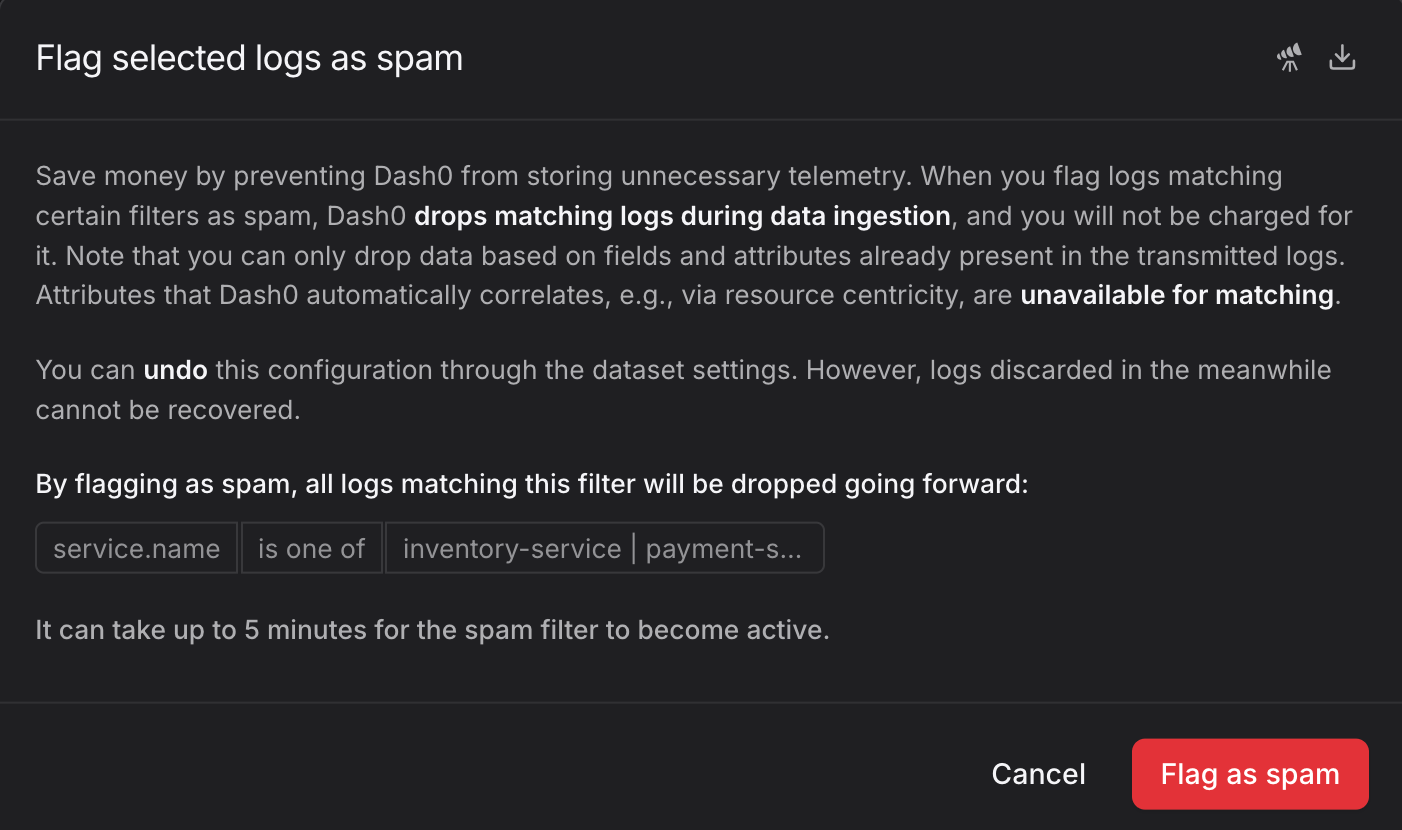


Once configured, the filter will become active within a few minutes.
Any data dropped by spam filters cannot be recovered, so create filters carefully.
Managing Spam Filters
All active spam filters appear in the Settings dialog, in the Datasets tab, per dataset.

In the Datasets tab you can:
- Review existing filters
- Disable filters temporarily
- Delete filters that are no longer needed
- Add new filters
Different datasets can have different spam filter configurations, allowing you to apply more aggressive filtering in development environments while keeping production telemetry more complete.
Filter Limitations
There are some important considerations when using spam filters:
- Filters operate on individual telemetry items (spans, logs, or metrics), not on aggregated data.
- You can only filter based on attributes present in the transmitted data.
- Attributes that Dash0 automatically correlates (like those via resource centricity) are unavailable for filtering.
- When filtering spans, you might end up with incomplete traces.
- It can take up to 5 minutes for a new filter to become active.
- Dropped data cannot be recovered.
Export Filters to OpenTelemetry Collector
For users who want to implement filtering earlier in their telemetry pipeline, Dash0 lets you export spam filters as OpenTelemetry Collector configurations.
This uses the filterprocessor and OTTL (OpenTelemetry Transformation Language) to create compatible filter configurations that can be deployed in your infrastructure.

From the spam filter, you can directly jump to an OpenTelemetry Collector configuration in OTelBin. Your configured filter is replaced by an OTTL expression.